

Junior Hub Set Up
How to Set Up the ASG Junior Hub on Your Computer
The Junior Hub is your centralized home base for meetings, training, resources, and requests. Follow the steps below to get set up once, then access it in seconds every day.
Step 1: Open the Junior Hub Link From the Email
Open your email inbox.
Find the email from Tim Urmanczy with the Junior Hub link.
Click the link in the email to open the Junior Hub in your browser.
Step 2: Click “Sign Up”
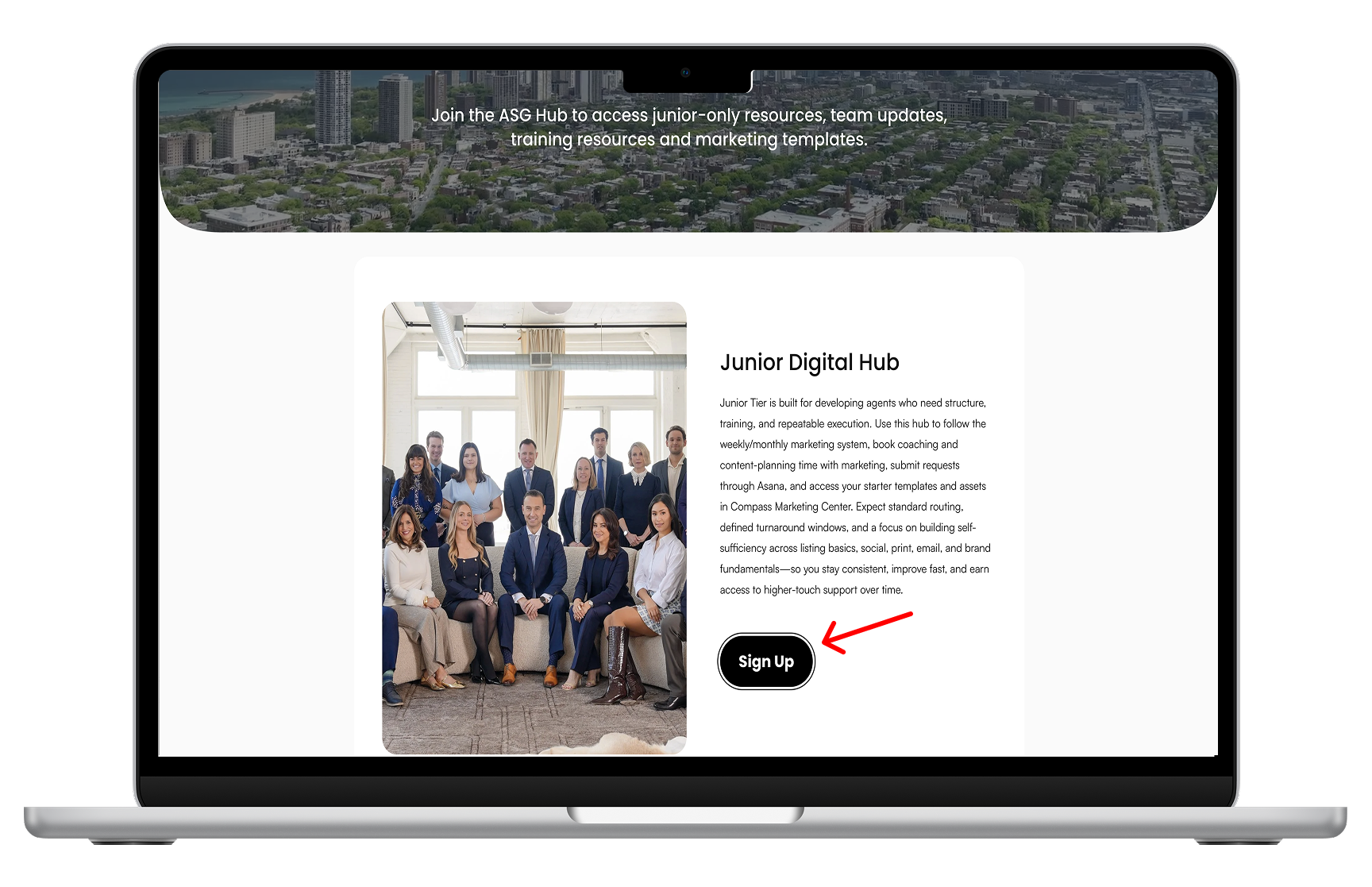
On the Junior Hub page, click Sign Up.
If you already have an account, choose Log In instead.
Step 3: Create Your Account
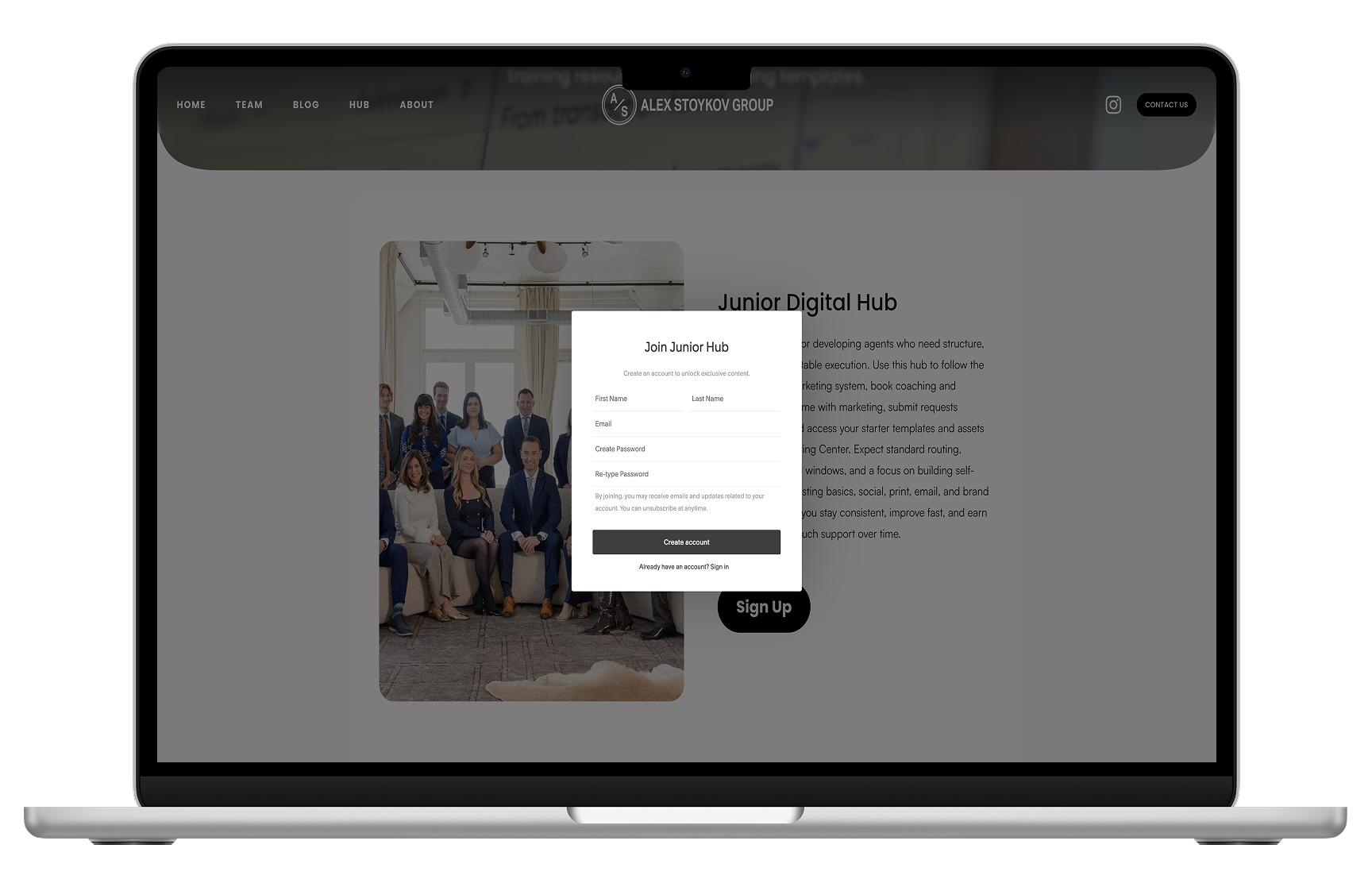
Enter your information (name, email, password).
Only use your Compass email.
Make sure your password is at least 10 characters long.
Complete any verification steps if prompted.
Submit to finish creating your account.
Step 4: Bookmark the Page as “Junior Hub”
Bookmarking saves the page in your browser so you don’t need to search your email again.
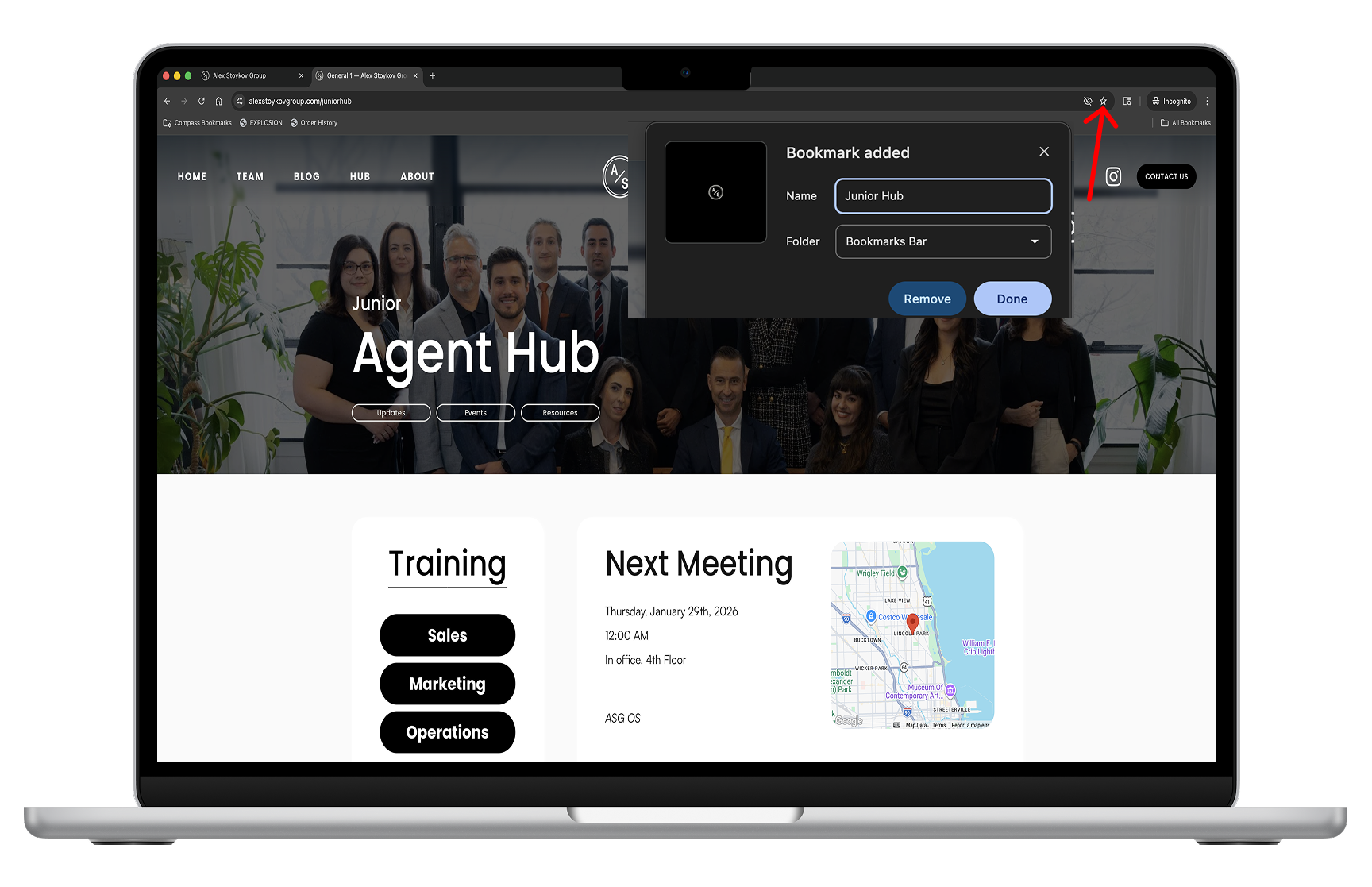
On Chrome (Mac/PC):
Press Command + D (Mac) or Ctrl + D (PC)
Name it: Junior Hub
Save
On Safari (Mac):
Click Share (square with arrow) or go to Bookmarks
Select Add Bookmark
Name it: Junior Hub
Save
Access the Team Hub
Click on the “Updates“ button
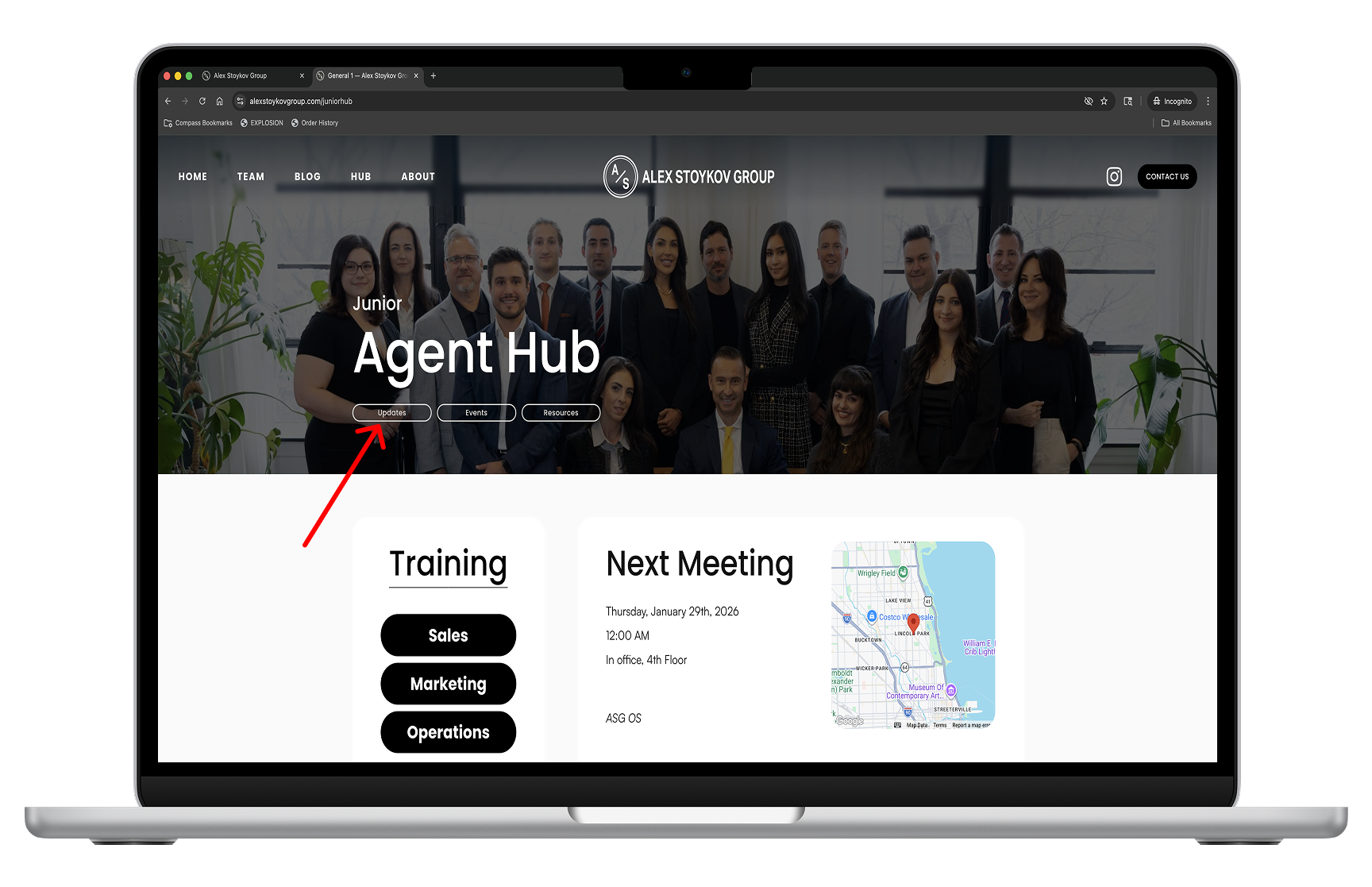
You will now be prompted to sign up for the Team Hub. Click sign up and that will give you access to all resources available to the entire team.
Click the Sign Up Button.
You only need to do this one time, you now have access to the Junior Hub and the Team Hub.
Verify Your Account
Lastly, please make sure you verify your account. You will receive 2 emails from Alex Stoykov Group.
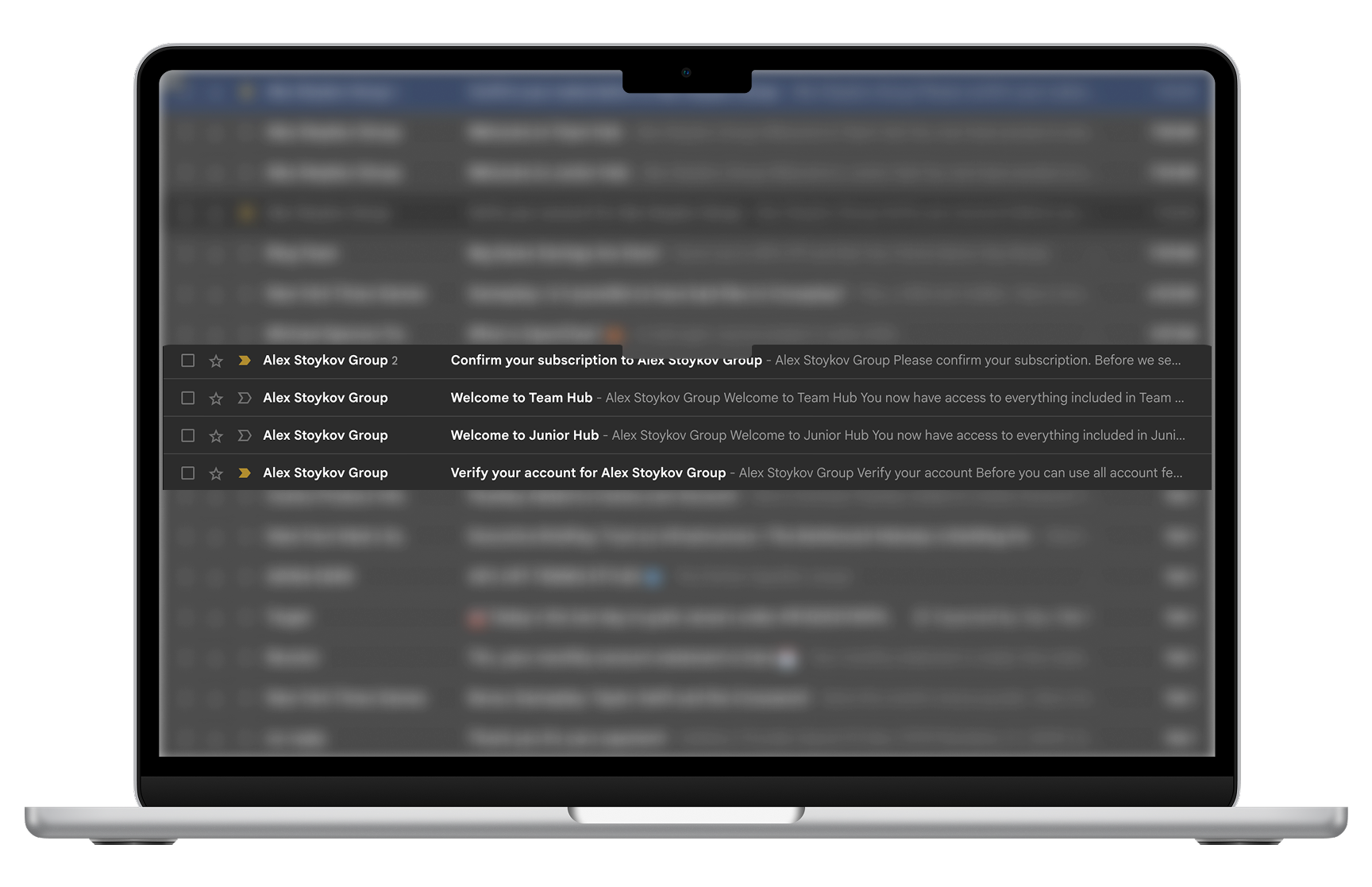
Step 1: Confirm Your Subscription to Alex Stoykov Group (ensures you receive updates emails)
Step 2: Verify your account for Alex Stoykov Group (ensures your account is real and emails don’t go to spam)
You’re Done!
You can now begin using the Junior hub to book marketing, make marketing requests, check in on our team updates and more.
